

SideBooks - PDF&Comic viewer
Tokyo Interplay Co., Ltd.
Create Screenshots Like SideBooks - PDF&Comic viewerApp Store Screenshots (8)


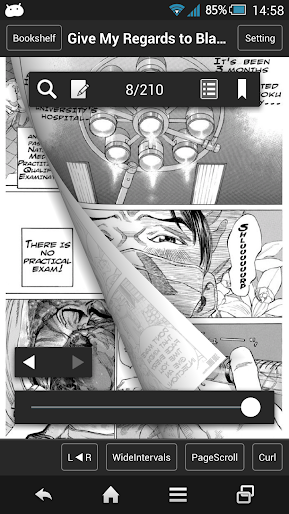


Design Analysis
Visual Design
Style: Custom (Skuomorphic)
Key Features Shown
- •Visual Bookshelf
- •Page Curl Animation
- •Thumbnail Index
- •Manual Trimming
- •Dropbox Integration
App Insights
Target: Digital comic (manga) collectors and PDF power users who prefer a skuomorphic, physical-book-like digital experience.
- •Ad-supported (likely, though not explicitly stated in IAP data)
- •Free utility to drive brand awareness for Tokyo Interplay
ASO Keywords:
About SideBooks - PDF&Comic viewer
SideBooks is a high performance, high speed PDF&Comic viewer that allows you to enjoy reading with the feel of actual paper. =Features= Curl animation that simulates the actual turning of paper pages has been added to the standard page slide function. Supports viewing from 2 directions, documents that open left to right and right to left. It provides the optimal environment for viewing any book. All zoom rates have been optimized providing high speed, dynamic screen display. An infinite hierarchy of folders can be created, moved, deleted, renamed, etc. using the enhanced bookshelf management function. Real visual bookshelf function. Files can be imported by 3 methods, Network transfer through Dropbox, USB transfer through PC and direct transfer from other applications. Books can be protected so others cannot view them by using the password protected locking function. =Functions= Overall: *Brightness Adjustment. *Screen rotates to match the orientation of the device *Screen Rotation Lock *Password Protected Start-up Lock Viewer: *Support PDF,ZIP,CBZ,RAR and CBR format *Page Turning: Choose from slide or curl *Viewing Directions: Choose from opening left to right / right to left *Page Spacing: Choose form wide / narrow / none *Facing Pages: Choose the pair of facing pages by setting the cover to on or off *Trim function within the range of page display *Cache pre-read function for the previous and next pages *Set the display for each book and remember the page number of the last page read *Text search function (list display type) *Contents function (page images, PDF bookmarks) *Bookmark function (with editable memos) *In-page link function *Link to outside URL function *Page turning function using tap or swipe *Expansion / Contraction function using pinch and double tap *Viewing of encrypted PDF files with password protection *Display / non-display of statusbar when reading Bookshelf: *Display form: Choose form list bookshelf / visual bookshelf *Cover editing function (corresponds to the trim) *File editing function: create, move, delete *Bookmark list *Network transfer through Dropbox *USB transfer through PC *Direct transfer from other applications Special thanks to, "Give My Regards to Black Jack" SHUHO SATO Manga on Web http://mangaonweb.com
Create screenshots like SideBooks - PDF&Comic viewer
Use FlyerBanana's free editor to create professional App Store screenshots inspired by SideBooks - PDF&Comic viewer's design. 100+ templates, device frames, and one-click export.
More Books & Reference Apps
View all

StoryTime Audiobooks
Books & Reference


Quran Mobasher
Books & Reference


Romance Novel - Good Web Novel
Books & Reference


eBooks: Audio Books
Books & Reference


NovelOasis-Romance & Webnovel
Books & Reference


zLibrary: ebooks & audiobooks
Books & Reference