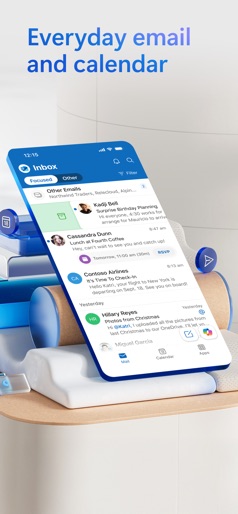
App Store Screenshots (8)


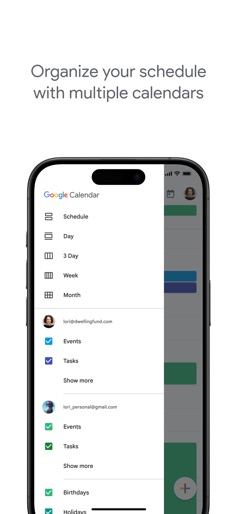
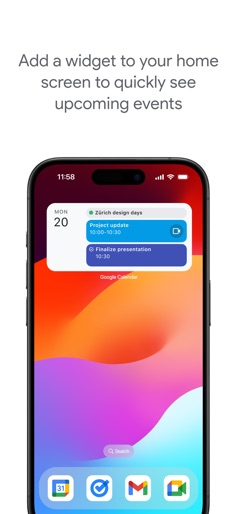
Design Analysis
Visual Design
Style: Material Design
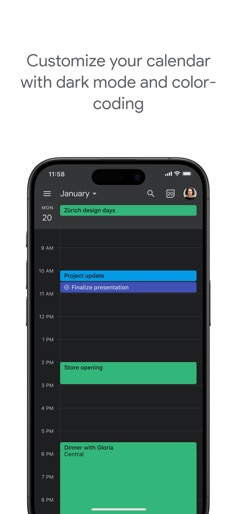
Key Features Shown
- •Schedule View with Rich Media
- •Event Creation with Time Dragging
- •Google Meet Integration
- •Gmail Flight Auto-Import
- •Full Month View
App Insights
Target: Broad consumer market and enterprise professionals requiring cross-platform scheduling and ecosystem integration.
- •In-App Purchases
- •Subscription (Google Workspace/Google One)
- •Ecosystem Lock-in
ASO Keywords:
About Google Calendar: Get Organized
The official Google Calendar app helps you stay organized and plan your day with easy event creation, multiple calendars, customizable views, widgets, and tasks. With Google Calendar, you can: • Get events automatically added to your Calendar from Gmail, including flight, hotel, concert, and restaurant reservations. • Go from using Calendar on your iPhone, iPad, or Apple Watch to your computer without missing a beat when you’re logged into the same Google account. • Consolidate and view Google Calendar events side-by-side with other calendars on your device, including Exchange and iCloud. • Keep family, friends, and colleagues in the loop with shared calendars, so they can view, add, or modify events. • Quickly switch between month, week, and day views. • Stay on top of to-dos by creating and managing tasks alongside your events in Calendar. • Personalize your Google Calendar with light or dark mode or by color-coding your events • Always know what's next while on the go with Google Calendar on Apple Watch by customizing your watch face with Calendar complications or adding widgets. Google Calendar is part of Google Workspace, allowing you and your team to easily connect, create, and collaborate across all your favorite Google tools. You can: • Collaborate in a hybrid work environment by adding a Google Meet video call to an Calendar event • Get access to professional booking pages to easily book clients and customers*. • Schedule meetings with teammates by checking their availability or layering their calendars in a single view • Add your working location to your calendar to make it easier for your teammates to schedule meetings with you*. • Keep everyone on track for a meeting by attaching meeting notes, pre-read materials, and other documents directly to a calendar event. • Use Google Calendar with confidence knowing it’s supported by Google’s enterprise-level privacy, user safety and data security. * Requires a Google Workspace or Google One AI Premium subscription
Create screenshots like Google Calendar: Get Organized
Use FlyerBanana's free editor to create professional App Store screenshots inspired by Google Calendar: Get Organized's design. 100+ templates, device frames, and one-click export.